> ## Documentation Index
> Fetch the complete documentation index at: https://docs.stack.events/llms.txt
> Use this file to discover all available pages before exploring further.
# Signing Up
> How admins and students sign up for Stack Events and create their accounts.
# Signing Up
Whether you're an admin getting your program started or a student joining your class, here's how to create your account on Stack.
***
## For Admins
If you're a media teacher, advisor, or program lead:
1. Go to [stack.events](https://stack.events)
2. Click the **Get Started** button
3. Select a plan and complete the registration form
Once you've subscribed, you’ll receive:
* Your own Stack instance (e.g. `yourname.stack.events`)
* A full admin dashboard to manage students, submissions, equipment, and more
Already signed up? Head to your custom URL and [log in](/media/getting-started/logging-in).
> **Note:** Only admins can create a new instance — students must join through their teacher’s link.
***
## For Students
If you're a student, your teacher will send you a direct link to your school's instance — something like:
[`https://demo.stack.events`](https://demo.stack.events)
### Here’s what to do:
1. Open the link your teacher or advisor gave you
2. Scroll to the bottom of the login screen
3. Click **Sign Up**
You’ll be taken to the registration form.
***
## Creating Your Student Account
After clicking **Sign Up**, follow these steps:
1. **Enter your school email**\
Use the email address your admin provided (usually your school-issued email).
2. **Check your inbox**\
You’ll receive a confirmation email. Click the verification link to continue.
3. **Create your password**\
After verifying, you’ll be asked to set your password.
4. **Choose your class**\
If your admin hasn’t pre-assigned you to a class, you’ll be prompted to select one from a dropdown list.
Once complete, you’ll be redirected to your student dashboard.
***
## Example Sign-Up Page
Here’s what the login screen looks like for most schools:
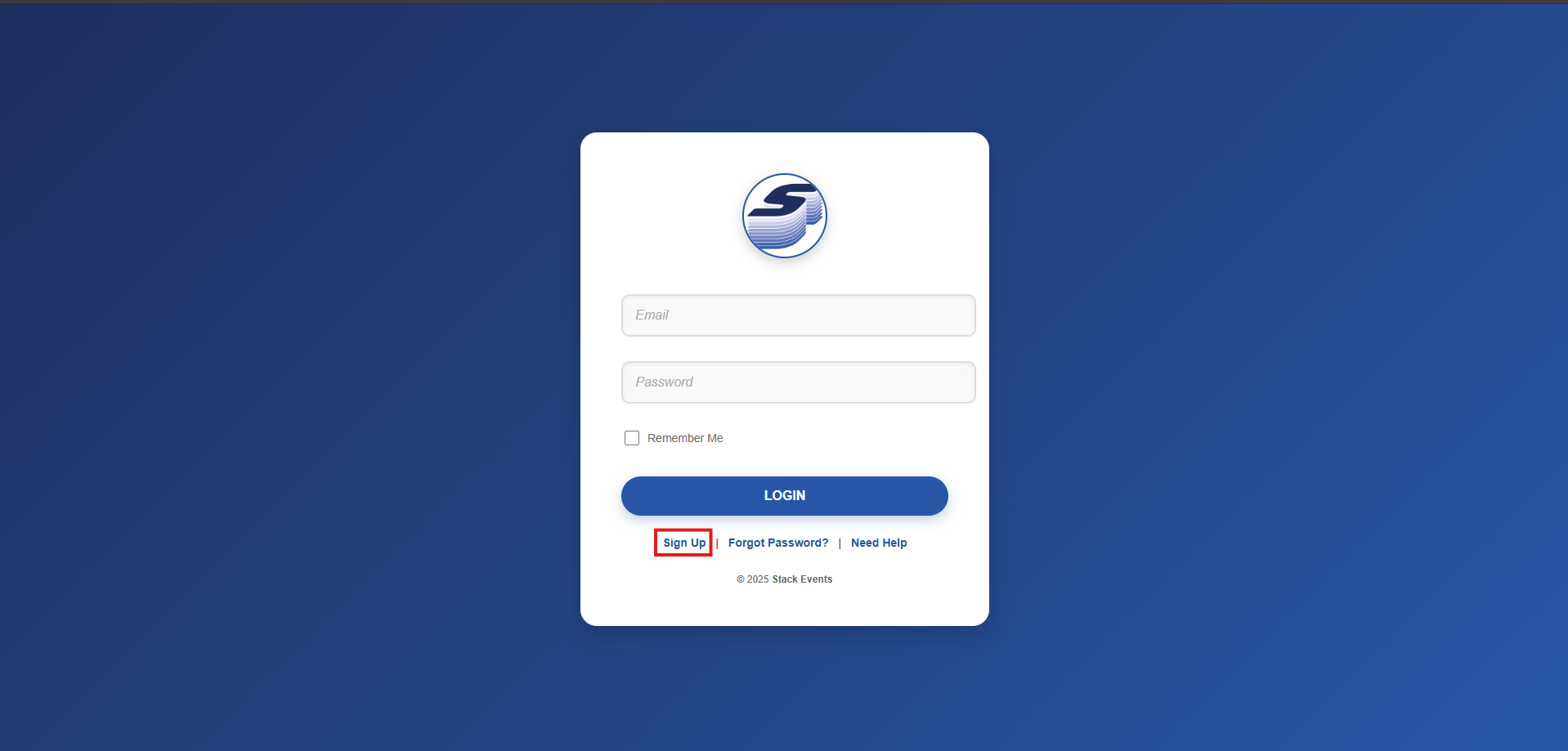 Click **Sign Up** in the footer area to get started.
***
## Having Trouble?
* Make sure the link ends in `.stack.events`
* Ask your teacher if your email has been imported into the student system
* Or visit [Support](https://stack.events/support) for help
Once your account is created, check out the [Logging In](/media/getting-started/logging-in) guide.
Still need help? [Contact Support](https://stack.events/support) and we can walk you through the process.
Click **Sign Up** in the footer area to get started.
***
## Having Trouble?
* Make sure the link ends in `.stack.events`
* Ask your teacher if your email has been imported into the student system
* Or visit [Support](https://stack.events/support) for help
Once your account is created, check out the [Logging In](/media/getting-started/logging-in) guide.
Still need help? [Contact Support](https://stack.events/support) and we can walk you through the process.